Using the Signals Hub
The Signals Hub is the dedicated page for reviewing every currently-firing signal across your comp set.
Open it from the main nav — the Signals Hub item shows an unread count badge so you can tell at a glance whether there's anything new to look at.
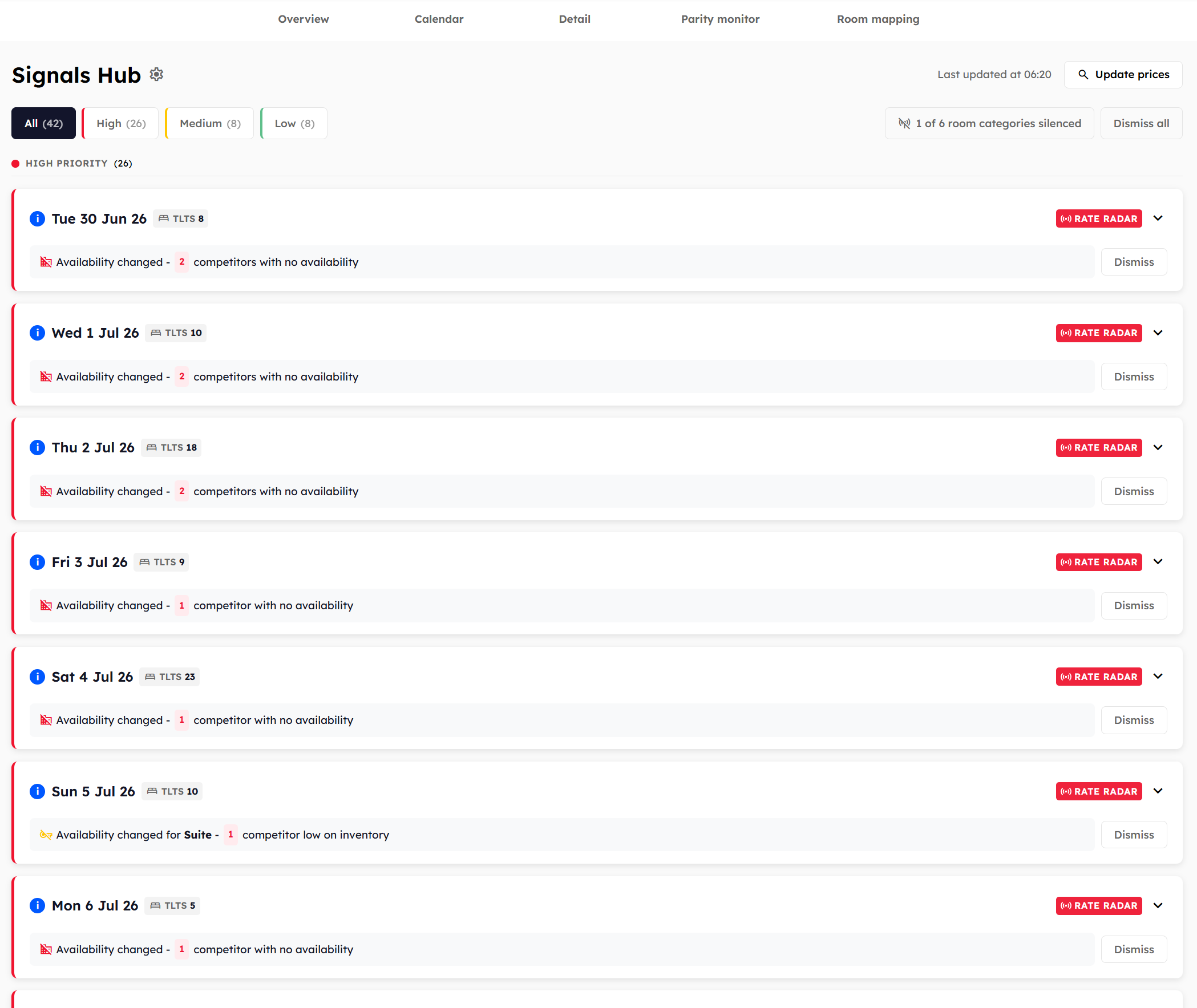
Room category status
All room categories active — Signals are firing for all six room categories.
X of 6 room categories silenced — you've turned off Signals for some categories on the Room mapping page.
Hover for the tooltip: Signals can be silenced per room category in Room Mapping. Click the icon to jump straight to Room mapping. See Silencing Signals per room category.
Bulk actions
Apply all — only visible when you have actionable Signals. Marks them all as read in one go.
Dismiss all — dismisses every visible signal.
Signal cards
Below the filter row, each signal is shown as a card. A card contains:
A coloured priority badge (red for High, amber for Medium, green for Low).
A title describing what happened — e.g. Competitors sold out, Market availability tightening, Soft market demand.
Context — which competitors are involved, what the price change is, and the stay date affected.
An action button — View Rate Radar — that takes you to the relevant date in the Rate Radar Overview.
Once you've reviewed a signal, mark it as read so it doesn't reappear unless the situation changes. See Reading, dismissing, and re-firing.
Empty state
When you've reviewed everything (or there's nothing new since the last update), the page shows:
All caught up! No new insights to review. Check back later for updates.
This is the goal state — your Signals are all read and you can move on.